
Installing and signing in
- Install HR Bingo from Google Play (Android) or the App Store (iPhone).
- Open it and type your company code. It is in the welcome email from your company (it is the first part of your company's address, for example yourcompany in yourcompany.hrbingo.com). Ask HR if you do not have it.
- Sign in with the same email and password as the HR Bingo website. New? Choose your password from the welcome email first. Forgot password? on the sign-in screen sends a reset link.
- Allow notifications when asked, so you hear about approvals, payslips and reminders. Allow location when you first clock in.
Every day
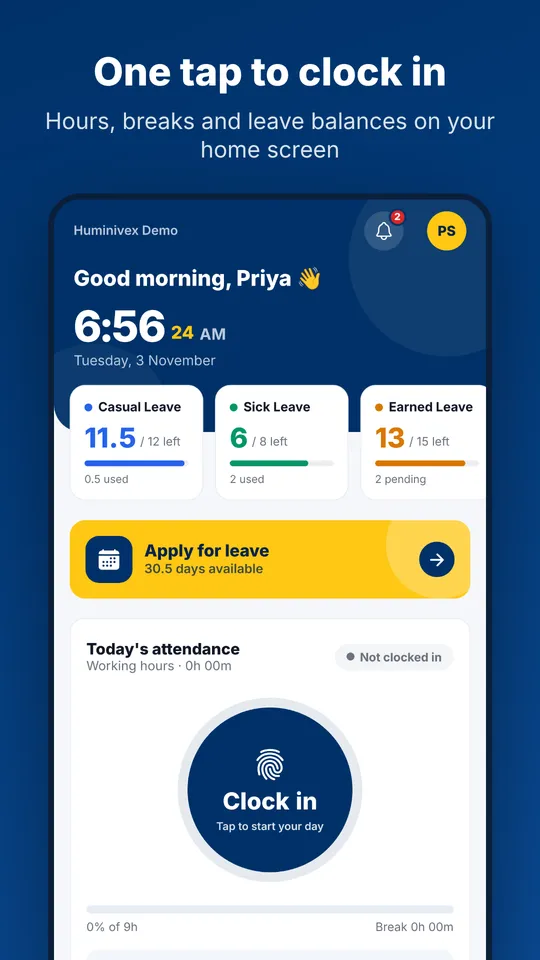
- Home: press Clock in, choose where you are working from (Office, Work from home or Other location) and the time is recorded. Break and Clock out on the same card.
- Forgot to clock out yesterday? The home card says so; press Ask for correction, give the time and a reason, and your manager approves it.
- Attendance: your month, day by day, with late marks, leave and holidays. Tap a day and Request a correction; Download monthly report (PDF) at the bottom.
Leave, payslips and more
- Leave: balances, Apply for leave, short leave and comp-off, and the status of each request. Tap a balance to see how it is worked out.
- Payslips: each month's payslip; download the PDF. When salary is locked you are asked to check your month: Looks right, or Something's wrong with what is wrong.
- Profile: My letters (read and sign), My expenses, My travel, My shifts, My visits, Holiday list, Announcements, Employee handbook, My concerns and My notices, depending on what your company uses.
- Chat with HR (button on the home screen, or Profile › Help and chat): ask about your leave, payslip or attendance and get the answer from your own records, or send the question to HR.
For managers, HR and owners
- Profile › Admin panel switches to the manager view: Dashboard (who is in, late, absent or on leave today), Approvals and Announcements. Switch back with My leave & payslips.
- Approvals: leave, short leave, corrections, shift changes and expenses waiting for you. Tap one to see the details and approve or reject it.
- Admins also find Company settings, App usage, Team field visits, Leave calendar and the handbook under Profile in the admin view.
Deleting your account
Profile › Delete my account (or hrbingo.com/delete-account) asks your company to remove your login. HR handles it under Settings › Account deletions. Your employee record, payslips and statutory records are kept as the law requires.
Frequently asked questions
The app says my company code is not found.
Check the spelling with HR: it is the first part of your company's HR Bingo address, without ".hrbingo.com".
Clock-in says I am too far from the office.
Your company sets how close you must be. Turn on location (precise location on Android), step outside for a better signal, or choose Work from home or Other location if your company allows it.
I do not get notifications.
Check that notifications for HR Bingo are on in the phone's settings, and that battery saver is not blocking the app. Sign out and in again to register the phone once more.
Can I use HR Bingo without the app?
Yes. Everything is also under My space at your company's address in any browser.